
Pocket Option App for PC
Download the PO trading app on your PC or simply log in to the web version of the platform using the button below.
*Risk warning: The services involve significant risk and can result in the loss of your invested capital.
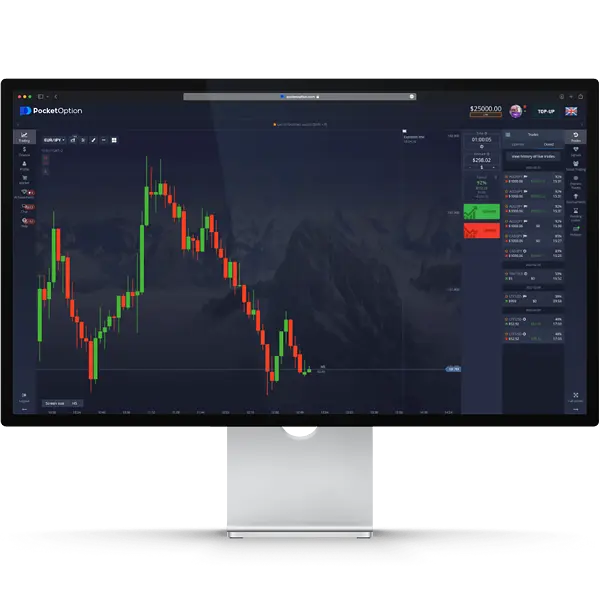

Trading on financial markets requires reliable tools and easy access. Pocket Option offers multiple ways to access their platform on PC. This guide outlines the options to help you choose the best one for your needs.
Current Methods for Using Pocket Option on PC
Web Platform: The Modern Trading Solution
The web version of Pocket Option has become the go-to platform for traders worldwide, offering advanced trading technology without the need for traditional downloads or installations. While the platform works seamlessly across all Windows versions, from Windows 7 to the latest Windows 11, you can also enhance your experience by installing the web version as a desktop app.
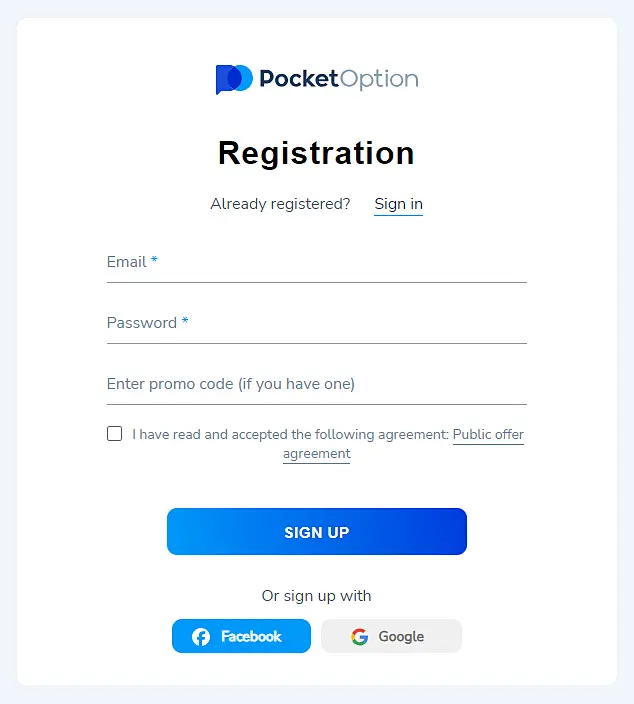
How to Start Trading via Web:
- Open your browser
- Visit official Pocket Option website
- Register or log in to your account
- Start trading immediately
Key Advantages:
- Instant access without installation
- Compatible with all Windows versions
- Regular automatic
- updates
- Full trading functionality
- No storage space required
- Enhanced security features

How to download Pocket Option for PC
- Open the Pocket Option website in your browser.
- In the browser’s address bar, locate and click the
- Install icon (usually a small download symbol).
- Confirm the installation when prompted.
- A shortcut will be created on your desktop.
- Click the shortcut to launch the trading platform.
This method allows you to create a shortcut on your Windows desktop, giving you quick access to the platform with the convenience of a standalone application. To set this up, simply use your browser’s “Install as App” or “Save to Desktop” feature. The installed web app provides the same real-time market data, advanced charting tools, and full trading functionality, while ensuring fast and direct access to the platform.
Traders prefer this option as it combines the benefits of the web platform — like no need for manual updates — with the ease of a desktop app for streamlined trading.
Android Emulator Method: Mobile Experience on PC
While the web platform serves as the primary solution, some traders prefer the mobile app interface. Through Android emulation, you can run the Pocket Option mobile app (PO Trade) on your Windows computer. This method combines the convenience of mobile trading with the power and screen size of a PC.
The emulator setup process requires more initial configuration but offers unique advantages. Many traders find the mobile interface more intuitive, especially when transitioning between desktop and phone trading. BlueStacks 5 stands out as the preferred emulator for running Pocket Option, offering stable performance and easy setup.
How to install Pocket Option on PC
Download and Install BlueStacks:
- Visit BlueStacks official website
- Download BlueStacks 5 installer
- Run the installation file and Follow setup wizard instructions
Get Pocket Option APK:
- Log in to your Pocket Option account
- Navigate to Applications section
- Download the official APK file
- Save it to a known location
Install PO Trade App:
- Launch BlueStacks
- Drag APK file into emulator window
- Click “Install”
Start Trading:
- Open Pocket Option in BlueStacks
- Log in with your credentials
System Requirements for Emulator:
| Component | Minimum | Recommended |
| Processor | 2.0 GHz Dual-Core | 3.0+ GHz Quad-Core |
| Memory | 4 GB RAM | 8 GB RAM |
| Storage | 5 GB free | 10 GB free |
| Graphics | Intel HD Graphics | Dedicated GPU |
| OS | Windows 7 | Windows 10/11 |
Download Pocket Option Desktop App for Windows
The standalone Pocket Option desktop app (MSI installation) has been discontinued. This section is included for users searching for information about the old desktop version.
Important Notice for Previous Desktop App Users:
- The MSI installer is no longer available
- Existing installations may have limited functionality
- Users should transition to the web platform
- Account data and settings remain accessible
- Trading history is preserved
It is possible that the broker will release another PC application soon, with a more optimized version and additional features. We will keep you updated.
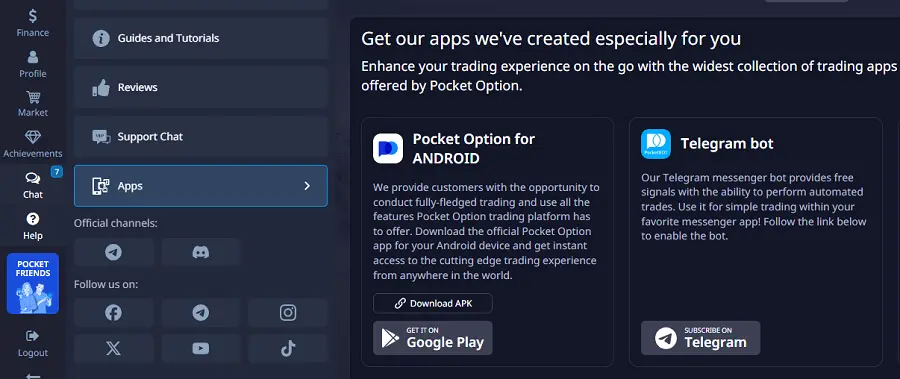
In the meantime, you can also check the availability and range of all applications in your Pocket Option personal account.
To do this, log in to your account and go to the “Help” section (in the desktop version, this option is located in the left vertical menu).
- In the list that appears, under “Reviews” and “Support Chat,” you will find “Apps” — click on it.
- On the next page, you will see the full list of Pocket Option applications for all devices.
- If you see the option “For Windows” there, feel free to select and install it on your computer
Detailed Comparison of Access Methods
| Feature | Web Platform | Emulator Method | Old Desktop App |
| Real-time Trading | ✅ | ✅ | ❌ |
| Chart Tools | ✅ | ✅ | ✅ |
| Mobile Interface | ❌ | ✅ | ❌ |
| Windows 11 Support | ✅ | ✅ | ❌ |
| Auto Updates | ✅ | ✅ | ❌ |
| Storage Required | Minimal | 5GB+ | N/A |
| Offline Access | ❌ | ✅ | ❌ |
| Trading Speed | Fastest | Good | N/A |
Windows Version Compatibility
Pocket Option’s web platform works consistently across all Windows versions. However, system requirements vary:
Windows 10 (or 11) users enjoy the best experience, with full support for all features and optimal performance. The platform takes advantage of modern browser capabilities and enhanced security features available in newer Windows versions.
Windows 7/8 users can still access all trading features, though they may experience slightly longer loading times. These users should ensure their browsers are updated to the latest supported versions for their operating system.
Getting Started with Pocket Option PC
Account Creation:
- Email registration
- Social media login
- Google account integration
Verification Steps:
- Email confirmation
- Phone verification
- Document submission
Platform Configuration:
- Interface customization
- Chart setup
- Trading preferences
New traders should begin with a demo account, available through both access methods. This allows risk-free practice and platform familiarization. The demo environment mirrors live trading conditions, offering real-time market data and full platform functionality.
Trading Features Available for PC
Whether accessing through the web platform or emulator, traders have access to:
The platform provides comprehensive trading capabilities, including binary options, digital options, and various market analysis tools. Technical analysis features include multiple chart types, timeframes, and popular indicators. Social trading functionality allows users to follow and copy successful traders.
Common Questions and Solutions
Many traders ask about downloading Pocket Option for Windows 10 or 11. The web platform eliminates this need, offering immediate access without installation. For those seeking a more traditional application experience, the emulator method provides a viable alternative.
Regarding performance issues, most can be resolved by:
- Clearing browser cache and cookies
- Updating your browser to the latest version
- Ensuring stable internet connection
- Closing unnecessary background applications
Security Considerations
Trading security remains paramount regardless of access method. The web platform incorporates advanced encryption and security measures, protecting your trading activities and personal information. When using the emulator method, download the APK only from your official Pocket Option account dashboard.
PO Trade PC FAQ:
The web platform offers the best combination of features and convenience for most users.
Go to the official platform website. Look at the address bar in your browser—on the right side, next to the “bookmark” button, you’ll see an installation icon. Click on it to create a shortcut for the web app on your Windows desktop.
The desktop app has been discontinued and is no longer supported. We also want to caution you against downloading suspicious applications from websites that specialize in offering various downloads. Always ensure you are using official and trusted sources.
Yes, the web version syncs across all devices.